> ## Documentation Index
> Fetch the complete documentation index at: https://cantonfoundation-docs-splice-portfolio-ui.mintlify.site/llms.txt
> Use this file to discover all available pages before exploring further.
# Add a Registry
> Add a registry to Splice Portfolio so its assets are visible and transferable.
A registry is a Daml application that can issue, service, and govern digital assets. You will need to add at least one registry to Splice Portfolio in order to view assets and conduct transfers and allocations. You can do this in the configuration file in the [deployment documentation](https://github.com/canton-network/wallet/blob/main/docs/dapp-building/examples/portfolio/index.md) or in the UI.
## Add a Registry from Settings
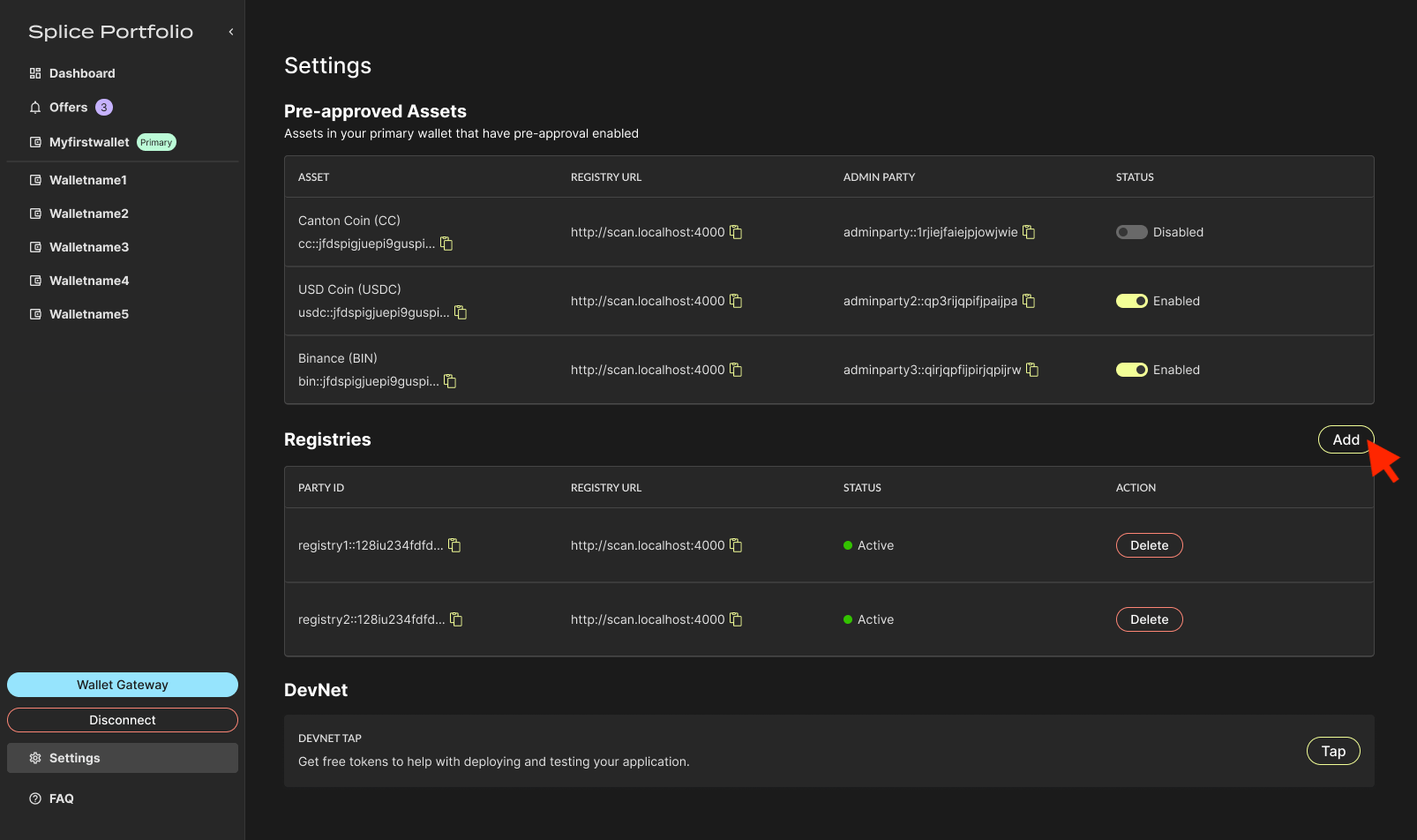
1. Go to **Settings**, navigate to the **Registries** section, and click **Add**.
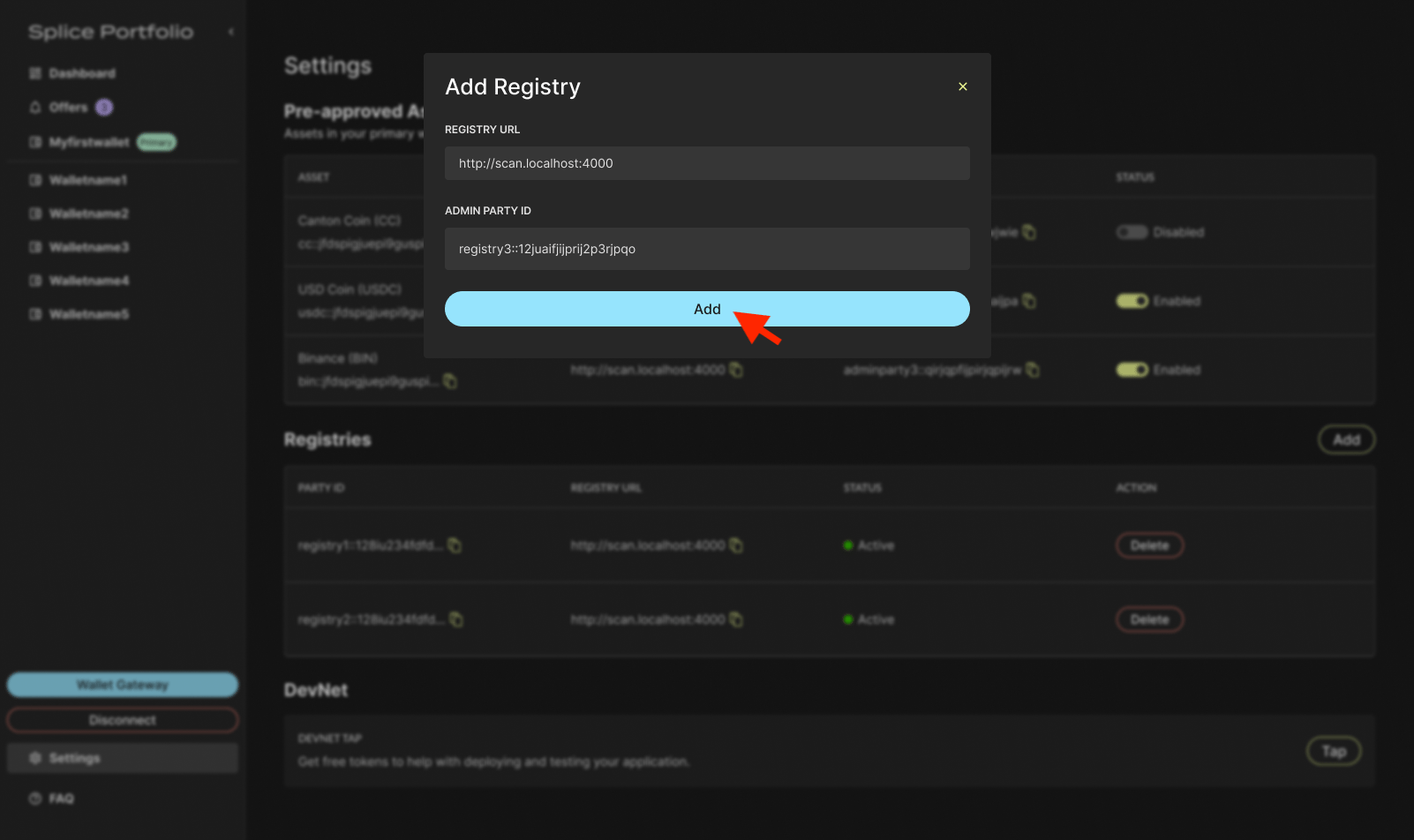
 2. Enter the registry URL and the admin party associated with the registry, then click **Add**.
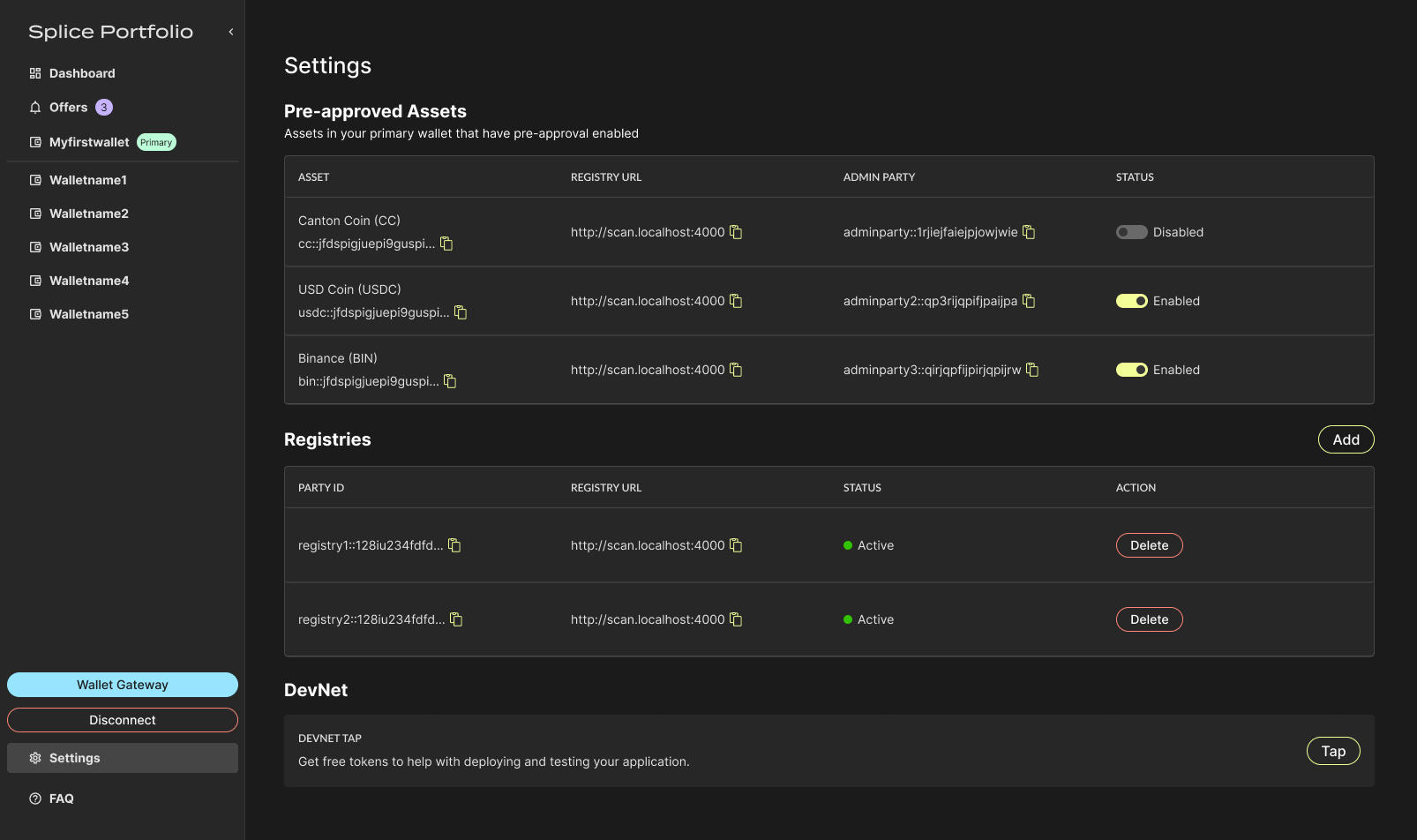
 3. View and delete registries in the **Registries** section.
 ## Next Steps
* [Enable Pre-Approvals](/sdks-tools/development-tools/splice-portfolio/pre-approvals) -- Assets appear in the Pre-Approvals table once their registry is added
## Next Steps
* [Enable Pre-Approvals](/sdks-tools/development-tools/splice-portfolio/pre-approvals) -- Assets appear in the Pre-Approvals table once their registry is added